Qraffe QR Generator
Create free static QR codes in your browser. No account, watermark or expiry.- 1. Choose QR typecompleted
- 2. Add content & designcompleted
- 3. QR ready
1. Choose QR type
2. Enter content
PNG, JPEG or WebP. Maximum 5 MB.
Drag and drop a logo or browse
Preview
- Strong contrast (15.3:1)Good
- Safe quiet zoneGood
- Logo coverage is safeGood
- Checking local decodeChecking
The defaults are suitable for most QR codes. Change these only when needed.
Quiet zone
Made for useful, lasting QR codes.
Create reliable, polished QR codes for menus, packaging, print, profiles and the everyday moments people need to scan.
Private
Your QR content and logo stay in your browser. Nothing is uploaded.Free
No account, watermark or expiry.Scan-ready
Checks contrast, quiet zone, payload density and local decode success before download.Built for how people actually use QR codes.
From menus to Wi-Fi to business cards. Practical QR codes for everyday moments.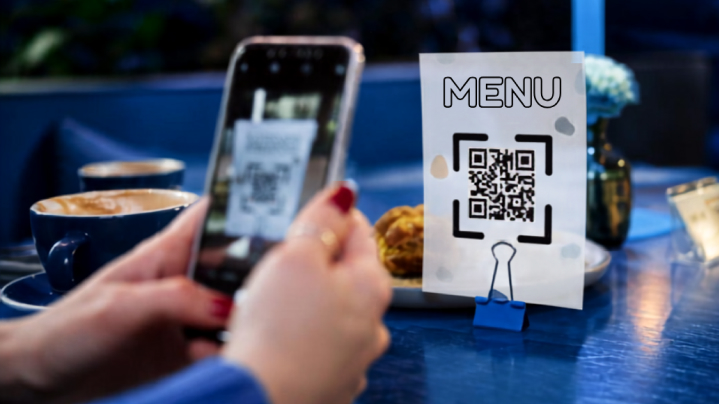
Restaurant menus
Give guests a QR code that opens your menu in seconds. Update the menu page whenever you need to; the QR keeps pointing to the same address.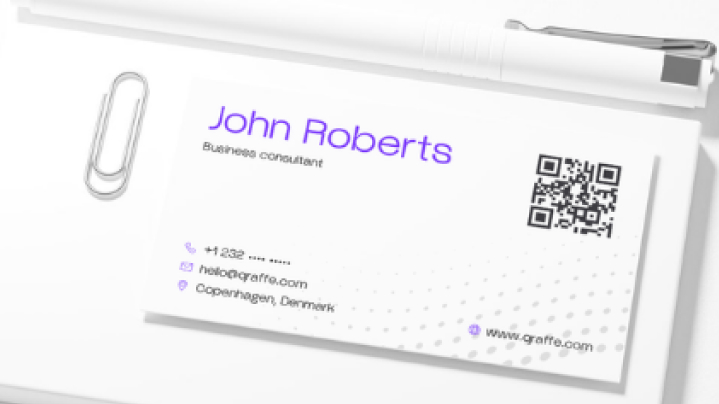
Business cards
Share contact details with a scannable vCard. No app, no typing and no lost paper cards.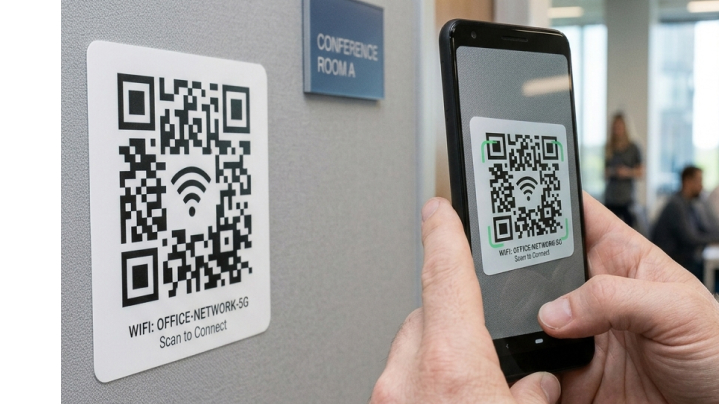
Wi-Fi access
Let compatible phones join a guest network without reading out the password. One scan can open the connection prompt.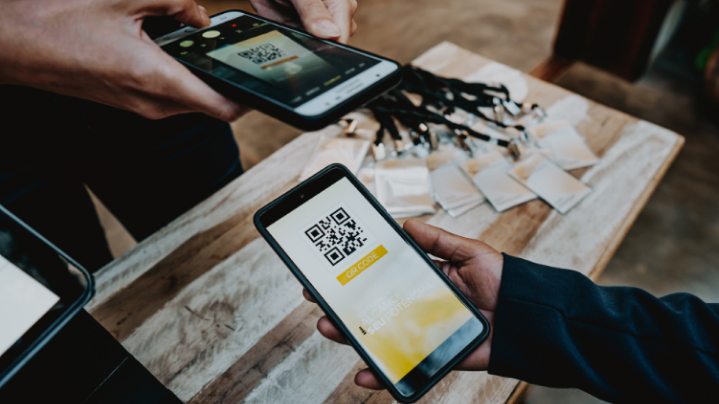
Event check-in and invites
Put tickets, RSVPs, calendar details or event information behind a single scannable web address.
Product packaging
Link customers to care instructions, warranties or your story from packaging that keeps working as long as its destination does.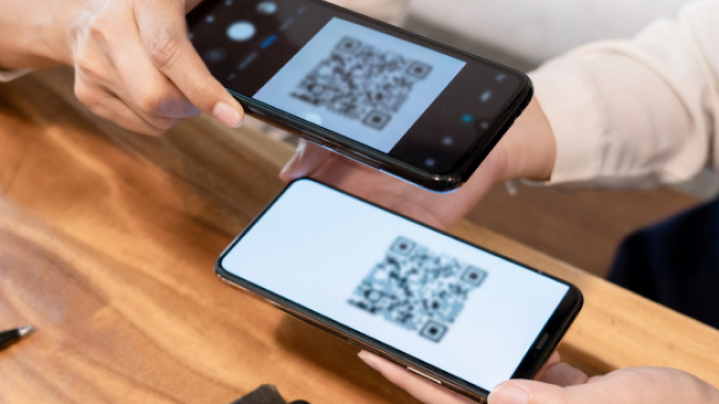
Social and portfolio links
Share a profile, portfolio or page containing the links you want people to find from a single scan.Some QR tools put a redirect between your code and its destination. Qraffe doesn't. Your content is encoded directly in the QR code, with no Qraffe redirect or expiry layer.
Read our story →QR code guides & resources
View all guides →QR code business cards: how to choose a vCard or link
Learn whether a business card QR code should contain a vCard or a website link, what details to include and how to test it before printing.4 min readRead guide →
How to make a QR code menu that keeps working
Create a QR code menu that opens quickly on a phone. Learn how to choose the link, place the code and test the final printed version.4 min readRead guide →
Printable QR code preflight checklist
Use this checklist before publishing a QR code on a menu, poster, package, label, sign or screen.2 min readRead guide →
Common questions
Static QR codes do not expire. A linked destination can stop working if its owner removes it.
No. Qraffe generates and checks QR codes locally in your browser.
Yes. You can use the QR codes you create for menus, packaging, posters, business cards and other commercial materials.
Use strong contrast, keep the quiet zone clear, avoid oversized logos and test the final code before publishing or printing it.
A static QR code has its content built directly into the image and does not depend on a QR service. A dynamic QR code points to a redirect link that can change later, but relies on that service remaining available.
A static QR code cannot be edited after it is downloaded. Create a new code with updated content instead; if it contains a web address, you can update the page at that address without replacing the QR code.
Start at least 2 × 2 cm (about 0.8 × 0.8 in) for close-up scanning, then make it larger as scanning distance increases. Test the final printed version with the phones your audience is likely to use.